I have a bigger problem with my computer which is I believe the reason I cannot yet access my saved Thunderbird mail from the Thunderbird Profile Directory. This is not the same as my original post about help to find a free mailbox provider. It’s really a different topic.
Somehow my computer has created an extra user account which it named “test”. I have taken my computer to a computer troubleshooters store and the guy in there could not help/figure it out. So you might choose not to continue to read on this matter as it will take a lot of time.
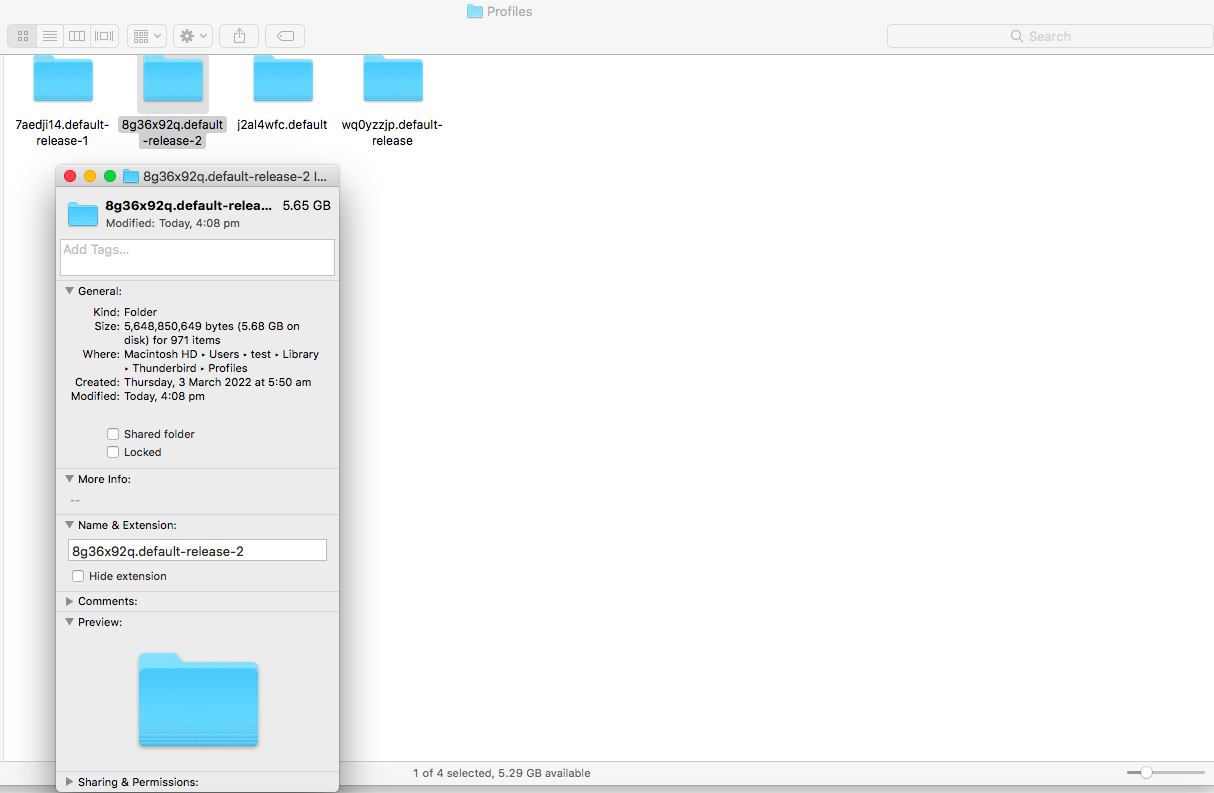
If I go to into my Thunderbird mail on my computer, choose “Tools->Export” and then click on “Open Profile Folder”, I arrive at a folder containing 4 folders with the 2nd highlighted. If I right click and choose Get Info, it shows Where the folder is located. Please note the directory path to that folder…this is what I see:
Go to the directory indicated, copy the file and paste it in the folder you wish it to be saved in. This folder to save to should be the same as the folder you have saved the other backups to. If there are more files in the Test one do the same for these backup files. If all your backup files reside in Test then in ginahome create a TB backup folder in Documents and move them there.
If it/they pastes/paste correctly and can be viewed in a zip program, then delete the folder in Test. After doing this, you can remove the user Test completely from your system if ginahome is an administrator account (not what is termed a Standard Account). To remove the account Test you will need to open Settings, then Accounts, then Other users, find the Test account (it may be the only account in the list), if it doesn’t show the options (which includes Remove) click the down arrow in the user name box, select Remove, in the warning box that comes up choose Delete account and data. That may take awhile to finish but at the end no Test account should remain.
I assume they created Test to do testing.
You may now need to tell Thunderbird where the new backup folder is so it saves to the right folder. To check and alter this if needed:
Go to the dropdown of ImportExport, from the list select Options from Options select the Backup scheduling tab, check the Destination and alter to whatever folder you have now designated as the backup storage folder. Click Ok to save the changes.
Did you mean copy the folder and paste it in the folder I wish it to be saved in ?
The screenshot shows 4 folders in the location.
I’m not sure that TB created “test” although it appeared soon after I started using TB and sent an emil to myself with a subject of “test”.
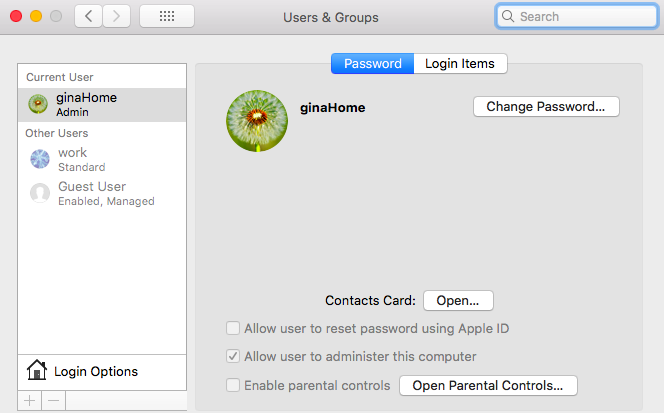
If I click on ginaHome at the top right of my screen, I choose User& Groups Preferences, it shows this:
Clicking on “test” is the only one that can bring me to my desktop.
I created a Work account previously and i think at that time that I renamed Guest as Work. Subsequently another Use called Guest appeared.
I can also view all mt TB emails when I’m logged into Work as I didn’t know how to use TB on ginaHome only.
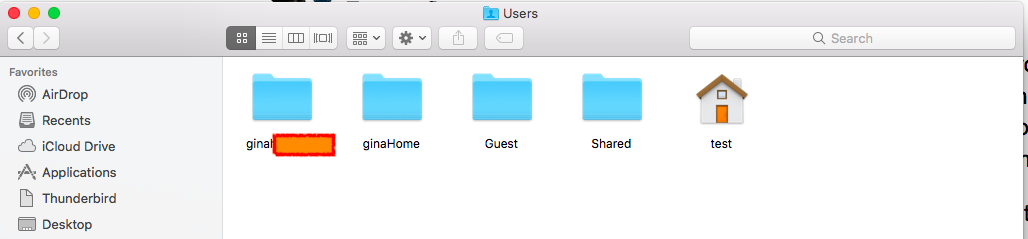
The User folder on the left is I believe the name of my home folder before I was I receievd some error message about it.
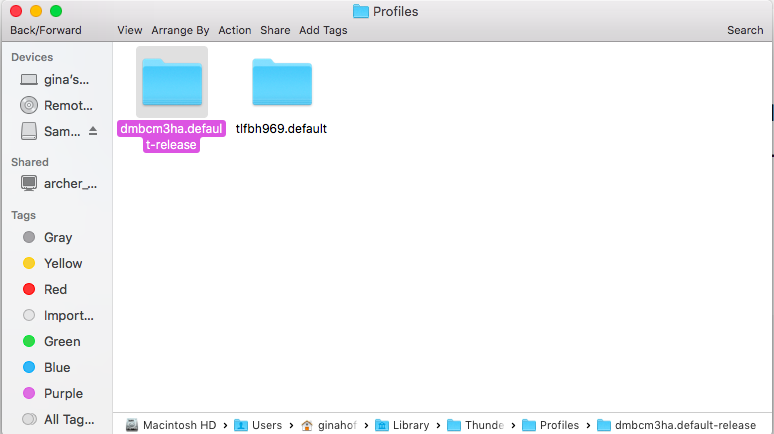
One further observation is that if I log into the Work User and go to into my Thunderbird mail then choose “Tools->Export” and then click on “Open Profile Folder”, I arrive at a folder containing 2 folders. Note the directory path here:
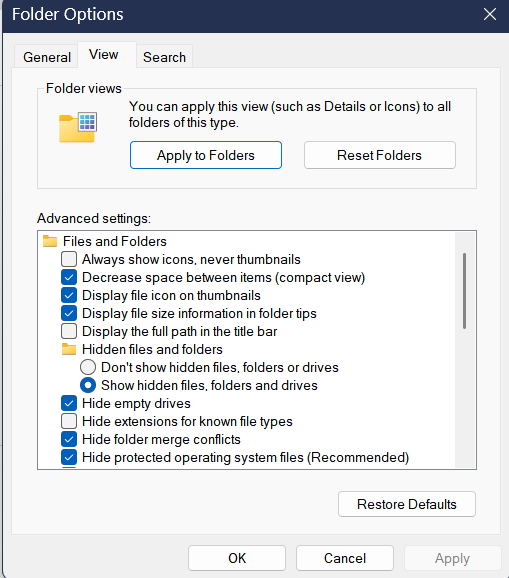
This might be too simplistic, but Thunderbird keeps all your email information in a folder named such as tifbh969.default. Open tools->troubleshooting and you will see ‘profile folder’ on the left. Click ‘open folder’. You may have to set File Explorer to show hidden and system files.
The full path on your PC should be something like
c:\users\ginahome\Appdata\Roaming\Thunderbird\profiles\tifbh969.default
assuming ginahome is your username on the PC.
Close Thunderbird, make a copy of that .default folder (kept as a backup), and then either:
a) copy/overwrite the contents of the email folder with your live emails folder into that .default one, OR
b) rename your .default to .default.bak, and rename the one you want as tifbh969.default
making sure it is in the profiles folder
and restart Thunderbird. You should see all your email accounts and emails.
I hope that makes enough sense.
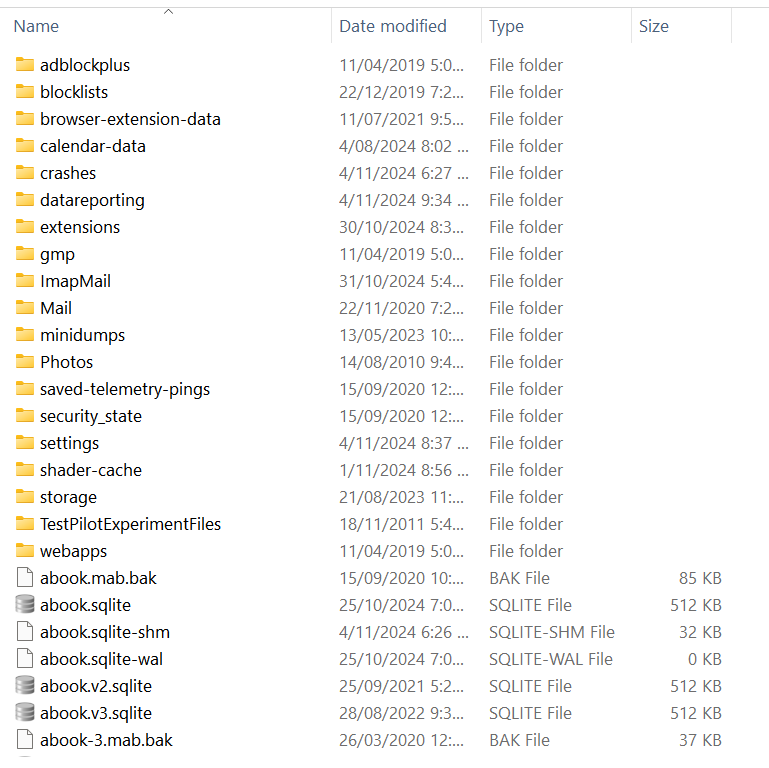
For confidence the top of the list of files in the .default folder should look like