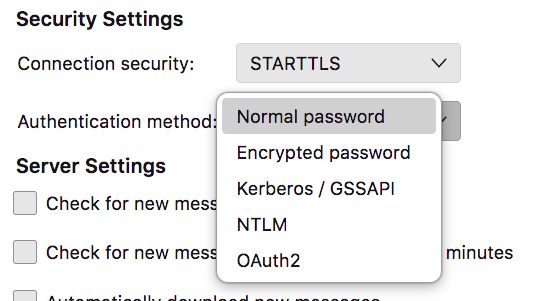
…sorry… “Inbox Subfolder” is what is was called
2 Likes
And this is what I’m seeing when I click on Properties for Inbox
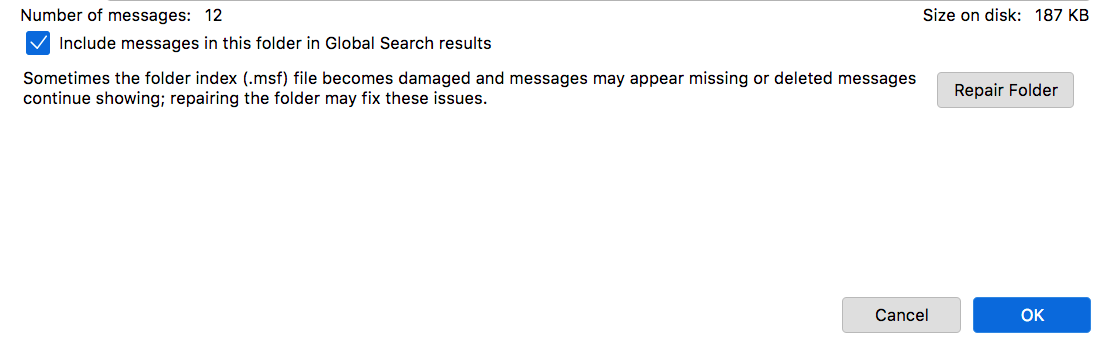
I have not clicked on Repair Folder as it is not apparent to me that it is need of repair. Do you recommend that I repair it ? Would this repair sufolders as well or could I find the answer to this on the Mozilla Support page?
I don’t know what the "Include messages in this folder in Global Search results "being checked will do. It is checked automatically
1 Like
No, only repair when there seems to be a problem when displaying messages. Infrequently our folders don’t display the emails correctly - they appear as code rather than text/HTML format. We right click and repair when this occurs which fixes the ‘bug’ and displays emails in the folder correctly.
It means when you search using the quick filter function, it will search emails in this folder when a global search is done. It can slow down searches if every folder is included and one has lot of kept emails - but useful if one can’t remember where an email may be.
A global search is done when search text is entered where it says ‘Filter messages’

and the enter key is hit. A new search window will appear which is the global search result.
If search text is entered and the enter key isn’t hit, the search results are the the displayed folder only (folder with the emails listed on the screen).
Thankyou as I have managed to tidy things up a bit.
My original post was about finding a new email provider (server ?) due to The Messaging Company immenently suspending the tpg email addresss unless I started paying to The Messaging Company. With the timely help of grahroll to notify relevant people of my new email address, I have minimised any potential problems arising from this.
I have to complete my Proton setup but now I am temporarily? stuck with finding a way to back up my emails still on Thunderbird prior to The Messaging Company suspending the prior email address. I have advice here from many people which will get back to.
But now, I actually should probably tidy up another issue I have had using Thunderbird for a couple of years being that it continually prompts me to login in to server pop3.tpg.com.au with my username and I have to enter a password. It wasn’t there at the start but suddenly started and has been occurring for a couple of years. Can anyone here help me fix this ?
2 Likes
TPG mail has moved to The Messaging Company, at one stage you may have had a TPG account. TPG went on to own iiNet, and a few others.
There is nothing that will fix this error if it continues to try to access the TPG mail servers. You can stop the email client from trying to connect automatically which will stop the error message or request to sign in, by archiving the account to save it to local folders and then deleting the old account. For this, it is best in Archive options to choose to save the existing file structure. With that choice it will save all the mail boxes with the same structure and emails as they previously existed.
1 Like
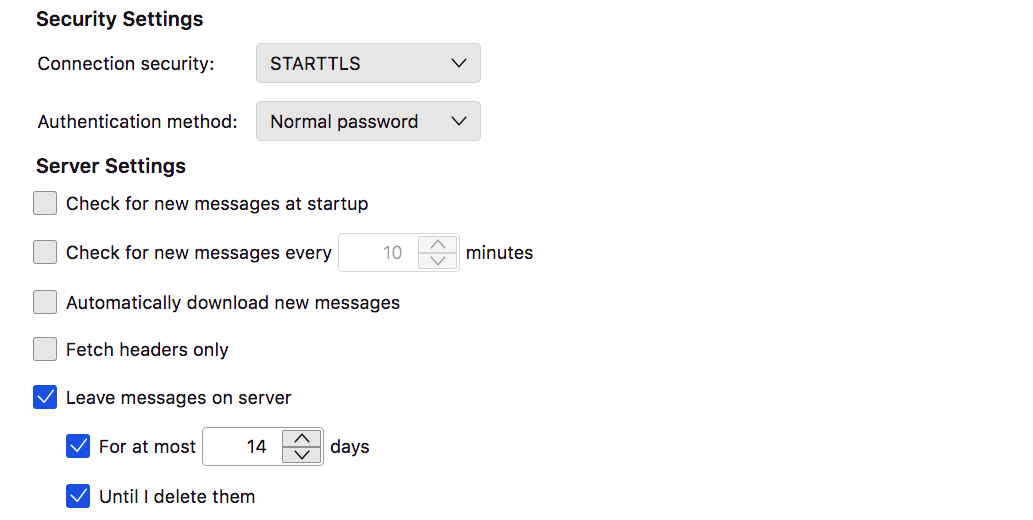
If you still have an account (left window within Thunderbird) for your old tpg email, Thunderbird will continue with the message you will be getting. To stop these messages, you will need to turn off autocheck for emails in this account - under server settings. This means making sure the ‘Check for emails at start up’ and ‘Check for emails every X minutes’ is deselected…
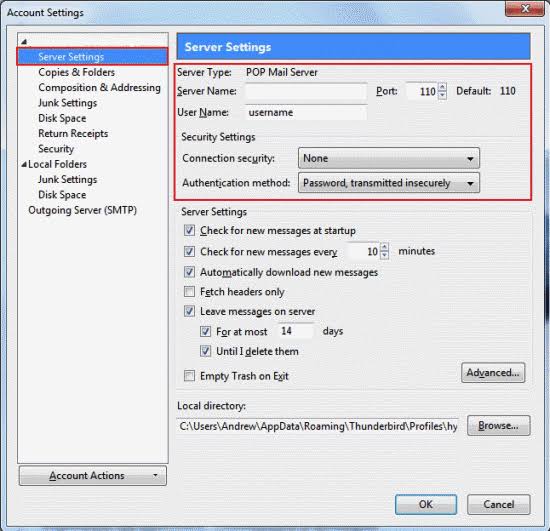
However, if you manually select Get Messages, the message will occur again.
The only way to permanently remove such messages is to move all emails from every TPG mailbox, if you wish to keep them, to a local folder, and then delete the TPG account. It can be deleted permanently under the Account Actions drop-down.
Unfortunately I can’t help you with ProtonMail, as I don’t use this email client. There are a number of online resources which provide information on ProtonMail account setups in Thunderbird, like:
We alternatively use Gmail, Yahoo and our own business email client for different purposes. We also use a range of messaging services (Line, WhatsApp, Messenger, WeChat, Skype, SMS, business services intranets) for messaging instead of emails, depending on who we are corresponding with and considering level of privacy. It is understood why some might chose email clients like ProtonMail if one has a concern about email privacy from other portable email clients.
The easiest way is to move them to a local folder, and ensuring any routine backups include the hard drive folder where the Thunderbird data files are stored:
This is how we manage historical emails we wish to keep. We don’t use Thunderbird’s archive function as we prefer local folder storage option instead.
The backed up local Thunderbird data files can easily be copied if originals are lost…or a new computer is bought to transfer data across.
1 Like
The Archive function stores the emails, when first chosen it defaults to the email account to archive the messages to. There is a dropdown where local folders is a choice. Selecting local folder saves the emails on the local drive and not with the email account. This email account saving link would want to be avoided with accounts that are closing or with IMAP. Basically Archive is achieving what you have done and creates the folders as a choice. Even the Backup function allows the backup of the Archives as well. Whatever way they are saved, moving it from IMAP to a local folder will save room on the IMAP server.
Proton uses IMAP, files are stored on the server, Bridge allows the user to use other email clients by creating an IMAP server on the local disk, this uses the Proton encryption. The free account on Proton is fairly restrictive size wise, so moving messages off the IMAP server and into local folders will save a lot of room. If an email is saved to Thunderbird’s local folders, then the email is not encrypted unless encryption is enabled by a program or app. In this case PGP can be enabled in Thunderbird to encrypt local folders, emails, and accounts to help keep them secure.
If a file is encrypted on a NTFS file system drive and is moved to a storage drive that is formatted in a FAT/FAT32 or similar e.g., exFAT then encryption will be lost, to keep encryption the file should be stored on a NTFS or similar file system that supports encryption, so if using a USB stick this should be formatted as NTFS or similar.
Linux filesystems that support encryption are as follows (as noted by the developers of fscrypt):
- ext4, with upstream kernel v4.1 or later. The kernel configuration must contain
CONFIG_FS_ENCRYPTION=y(for kernels v5.1+) orCONFIG_EXT4_ENCRYPTION=yor=m(for older kernels). The filesystem must also have theencryptfeature flag enabled; to enable this flag, see here. - f2fs, with upstream kernel v4.2 or later. The kernel configuration must contain
CONFIG_FS_ENCRYPTION=y(for kernels v5.1+) orCONFIG_F2FS_FS_ENCRYPTION=y(for older kernels). The filesystem must also have theencryptfeature flag enabled; this flag can be enabled at format time bymkfs.f2fs -O encryptor later byfsck.f2fs -O encrypt. - UBIFS, with upstream kernel v4.10 or later. The kernel configuration must contain
CONFIG_FS_ENCRYPTION=y(for kernels v5.1+) orCONFIG_UBIFS_FS_ENCRYPTION=y(for older kernels). - CephFS, with upstream kernel v6.6 or later. The kernel configuration must contain
CONFIG_FS_ENCRYPTION=y. - Lustre, with Lustre v2.14.0 or later. For details, see the Lustre documentation. Please note that Lustre is not part of the upstream Linux kernel, and its encryption implementation has not been reviewed by the authors of
fscrypt. Questions/issues about Lustre encryption should be directed to the Lustre developers. Lustre version 2.14 does not encrypt filenames, even though it claims to, so v2.15.0 or later should be used.
Apple APFS is designed with encryption in mind. If a USB stick is formatted with APFS then moving encrypted files from a Mac or iOS device means they will still be encrypted on the storage device. If the file needs to be viewed on a non Apple device this may not be possible as most other operating system do not natively handle the APFS formatting.
1 Like
Creating local folders and moving emails from an email account (POP or IMAP) does a similar job. We use local folders as it allows us to create numerous subfolders based on subjects…such as emails associated with bills, superannuation, banking, work, schooling, education, associations and the list goes on. We have possibly 30-40 local subfolders we use to temporarily store emails for future reference. We then delete old emails which no longer need to be referenced again. It was recently done for emails which were over 3 years old for personal ‘stuff’. Tax related emails are kept longer, if the information isn’t available somewhere else (e.g. logging onto an online account).
1 Like
I understand this and it would have been my next query.
To clarify, the password prompt has been occurring for a couple of years and I have stopped using the TPG mail servers recently. So I am interested in solving the earlier problem which perhaps has something to do with a Keychain or 2Factor Authentification. So it’s a pity now the 2 issues are occurring together at the same i.e. 1. the older reprompting for password issue. and 2. The prompt because I no longer have that TPG email address.
Is there any way I can separate them so that I can fix issue 1?
I will going through all tips already provided about Local Folders/Archive etc.
Tks
A few issues, one being Thunderbird supports traditional passwords as well as OAuth2. Select OAuth2 and then there will be a requirement to log into your mail host and grant yourself access but that will not recur once done. It appears daunting at first but is usually easy, straight forward and automated.
As for TB remembering passwords, see Tools->Settings->Privacy&Security to see what it has saved. When you log into a mail host there should be a popup asking if you want to save the username/password so you need not re-enter it each time.
edit: My bad - Proton Mail appears to still have OAuth2 as a future and requires 2FA.
What I will do now is turn off autocheck as suggested. Note that if/when I start using Thunderbird with the Proton servers that I expect this password prompt issue (Issue 1) will resume. It’s been occurring for a couple of years now but I have just put up with it and kept entering my password.
Once I turn off the autocheck I will try to save a copy of my emails. I refer to this first advice from grahroll :
“Regarding files stored on your drive, you can and should do regular backups of your drive and thus your data regardless of whether you store your emails on it or have an online storage of the emails via your email provider. Nothing hurts so much as losing access to photos, documents, videos, contacts, and even programs that you no longer have installation media for.”
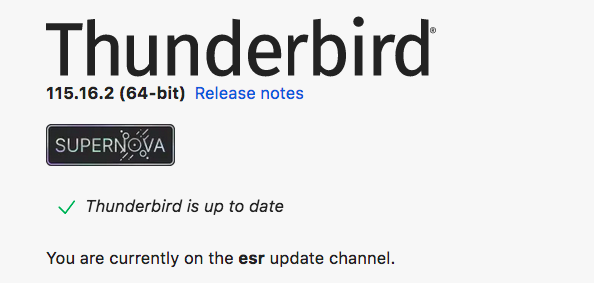
I am going to try to Export to a zip file or to copy to usb a backup stored in the Thunderbird profile folder. And then Import the file to see if I can achieve success. In the past I could Export/Import emails using Outlook. I have yet to achieve that success with my Thunderbird. That’s the present issue which I’d appreciate help to achieve. My Thunderbird version is this:
I promise that once I can successfully manually emails that save tthat I will return to all my advice receivedabout Local folders.
If you create a local folder in Thunderbird and move the files there, they (the folder with emails) is automatically saved on the hard drive in
C:\Users<your Windows login username>\AppData\Roaming\Thunderbird\Profiles\
It saves a lot of mucking around.
When backing up, one just needs to ensure the above folder is in the list of folders to backup. Possibly all the AppData folder should be backed up as there could be other program/user data needing backup to protect against loss.
Thank you
The sign in pop-uo which has been occurring for a couple of years is resolved when I click on “Enter new Password”, the button on the left. and enter my password
It then hasn’t saved it and the pop-up has continually recurred.
A look at my settings I think is showing pretty much nothing stored there.

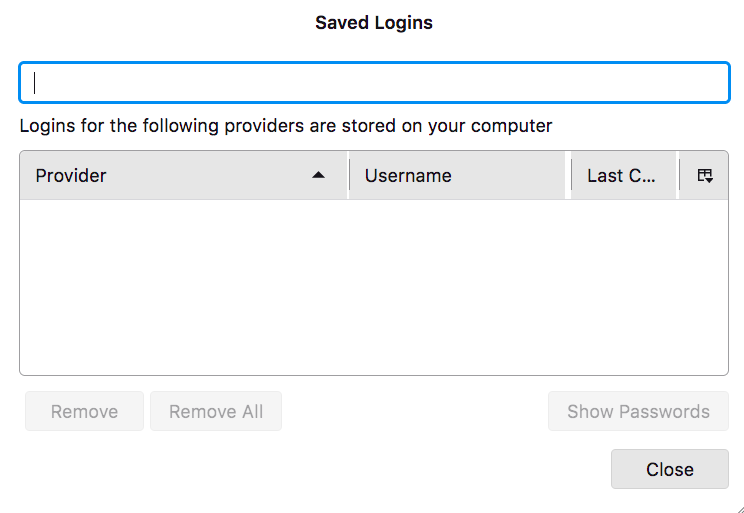
I don’t know weher to see OAuth2
Apologies but apparently I am not familiar enough with Proton so I’ll step back.
You’re fine.
1 Like
Thank you. I’m on mac. Can you provide similiar path for mac ?
This website provides step by step process to find Mac/OS data file locations:
The folder to include in backups is the Profile folder and all its files and subdirectories.
Thank you.
I am just trying to turn off the Autocheck in my messages. I can’t relocate where to do this now. I was able to get there previously. This is my prior screenshot.
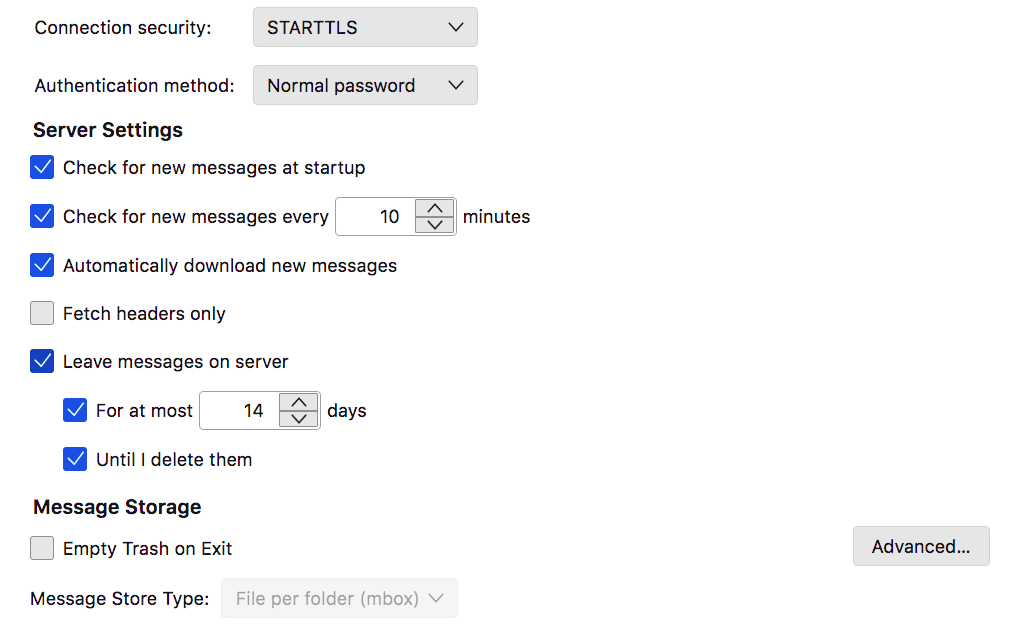
Sorry but could you assist me to get the this server settings area again?
Disregard the most recent message. I found it and have have removed the autocheck. My settings are now this:
1 Like