I think there may be some confusion. The duds were bought from the Reject Shop (an unknown brand) and Harvey Norman (LEXAR).
Well, anyway I have an absolute ****load of USB flash drives, with a significant range of brands and capacities and ages and use cases, and I have not experienced reliability problems and therefore I have not (anecdotally) noticed a decline in reliability.
So, no, I don’t have an explanation for the original post e.g. whether it’s bad batch? or bad luck? or?
I also have a ****load of SD cards and SSD portable drives i.e. flash storage more generally.
If it helps anyone, most recently I have mostly been buying SanDisk SD cards and flash drives (and Samsung SSD portable drives).
3 Likes
Update: I almost forgot about my three non working Lexar USBs, when today I came across a public PC (in a convenience store) and tried my luck with one of the non working Lexar USBs. I wanted to try out a data recovery application on a PC (as most of my lost files relate more to PC than Mac and I only have a Mac) and I know that in order to use such applications, I need to download and install several files, hence the need to use a PC. All public libraries that I know of prohibit downloading onto their computers.
Recently I came across one such data recovery tool: “easeUS”, which at first glance was “free”.
So today, at the PC I managed to download the application.
I went through the motions and the program commences a scan of the USB.
A counter indicates the percentage of the USB’s files that have been scanned.
At about 20% I stop the scan when I see an invitation to buy the “pro” version. The “free” version allows recovery of a very small amount of data. I see that I am using the “trial” version.
What interested me were:
(a) As it scanned, it showed the names and file paths on the USB. They all rang bells. Indeed they were the names of the lost/corrupt files; and
(b) The price for the “pro” i.e. in order to recover, preview and save the lost files would be $109.
Later, while looking at easeUS’ website, I saw a “sale” price of $82.
NB: the prices are in AUD and relate to Windows (Mac versions also exist at higher prices) and are for 1 month of use. There are also annual and lifetime prices.
I wonder if Choice staff tested such data recovery tools corrupt USBs? If not, maybe they will?
Another well know application is Drill Disk, but that’s more expensive.
Note: there are countless negative comments online about easeUS eg “it’s a scam” and “it is garbage as it fails to work”. As “sceptical” is my middle name, I am wary of any product or service with many negative comments. Not to mention a near useless “trial” version.
But given I saw many correct filenames (and paths) pop up on the screen during the scan of the USB (file and folder names that can’t be seen when loading the USB into a Windows or MacOS), I am leaning towards giving easeUS the benefit of the doubt as to its ability to restore files on a USB.
Now all I have to do is determine if the stuff I have on the USB but can’t access is worth $109, before I commit to paying.
I linked several recovery programs that may be useful previously in this topic. Some like Easeus have limitations of what can be recovered for free, others have no limitations of this nature.
While I like the Easeus backup tools (even the free version) I am averse to using the data recovery tool purely because of the price factor.
1 Like
Seeing names of files is marketing. It is a scan of file entries. The actual file(s) may or may not be recoverable in whole or part. The why that is so is tech talk, but be forewarned it could recover all or little.
3 Likes
@grahroll thanks for the feedback
@PhilT you make a good point. So as I understand you, while easeUS can identify files, which are invisible to the naked eye, the USB shows zero MB used (when plugged into a port and asks if I want to reformat the USB in order to use it), identifying invisible files is not synonymous with the ability or promise to recover them?
1 Like
No, it could be reading the file allocation table (FAT) rather than recoverable data on the drive.
Seeing what is in the FAT doesn’t mean data is recoverable. It is a bit like having an index page of a book. While the index can be seen, the rest of the book could be damaged or destroyed… or only parts of every page can be seen.
Edit: Paying a significant amount of money in hope it recovers some data from a USB drive, may or may not be money well spent. This website has some options to try using inbuilt OS tools:
As it appears something is causing the USB drives to regularly fail, money might be better spent on finding out what is causing these failures. This may prevent future failures and data loss, rather than trying a band aid solution to try an recover data when a drive becomes corrupted/fails.
in addition to this, the money could be used to install a better backup regime, rather than relying on USB drives. This would also provide protection from future data loss.
4 Likes
When a file is written to a device, the details of that file are also recorded in a ‘directory’. @phb refers to one form of these - a File Allocation Table. There are many variants on how the file details are stored in this directory. When you go to open the file, your system looks at the directory to find where on the device it will find the file.
Normally, when you delete a file what actually gets deleted is the record of that file in the directory. This means that the part of the device that was storing the file can now be used to store something else. Oh, and an individual file may be split up across many different areas on the storage device, so the directory needs to keep track of this as well.
Tools to undelete files often take advantage of the fact that they can find at least part of the file record even though it is no longer recorded in the central directory.
Big problem 1: if you have written to the device since that file was ‘deleted’ from the directory, some of that new data may have been written to space that had previously been used for the file you are now trying to recover.
Big problem 2: the undelete tool may be able to find part of the file but not the entire file (for instance if the storage has been corrupted in some way, as is suggested by the OP). The following article may explain this more clearly (it mentions a few of the different ‘directory’ types).
3 Likes
Just to clarify: the USBs seem to be corrupted. The issue is not that I deleted files and want to undelete them, The issue is that files and folders on the USB are not listed when the USB is plugged into a port.
Good points you make. By the way, I spoke to Apple about the problem and they recommend a data recovery service called payam. I contacted them via the website for a quote: they got back to me in a jiffy, $250.
Sounds to me like the directory, which in FAT32 starts at logical sector 1 after the boot sector at 0, is getting corrupted by the controller on the USB.
At a high level, like a file explorer, it appears to be a drive with no folders (directory entries), or data (file entries). They both occupy the further sectors and are linked lists.
If one uses a disk scanning tool, it reads the drive at a low level sector by sector. At the start of each sector will be a file header indicating what it is. A directory entry, or a file entry. So the names can be identified, and the chains linking multi-sector directory and files identified.
But at the high level of a disk file system, which accesses via directory entries, the whole thing fails if the very start at sector 1 is bad.
2 Likes
Interesting points you make. So prima facie do you believe that no files will most likely be recovered by a data recovery product? I ask because from what I read, I need to buy the product or service costing $110 and up with no promise of data recovery. In one case - given there are 3 USBs - I could be 3 x $250 or $750 out of pocket and have nothing to show for it (if nothing can be recovered).
It depends. If the device had been used a lot, so there’d been a lot of writing and rewriting to it and the drive had been close to full, the remaining file fragments might be too few to recover anything useful. If it had only been added to, without any deleting, a tool that can repair the file table might actually get it all back. And somewhere in between.
Also, if there are a lot of bad patches on the drive and they’re the cause of the problem, there mightn’t be much that can be recovered anyway.
So I wouldn’t be keen to spend money on a recovery tool unless it’s really important to recover whatever data you can from those USB drives.
There are free options. You could try Windows File Recovery, a Microsoft command-line tool available from the Microsoft Store. The MS Store might have other data recovery tools that have genuinely free, working versions, too.
There are a number of free Linux tools that do a pretty good job of analysing and recovering data from corrupted filesystems. Do you have a Linux system to hand (or a friend with one)?
2 Likes
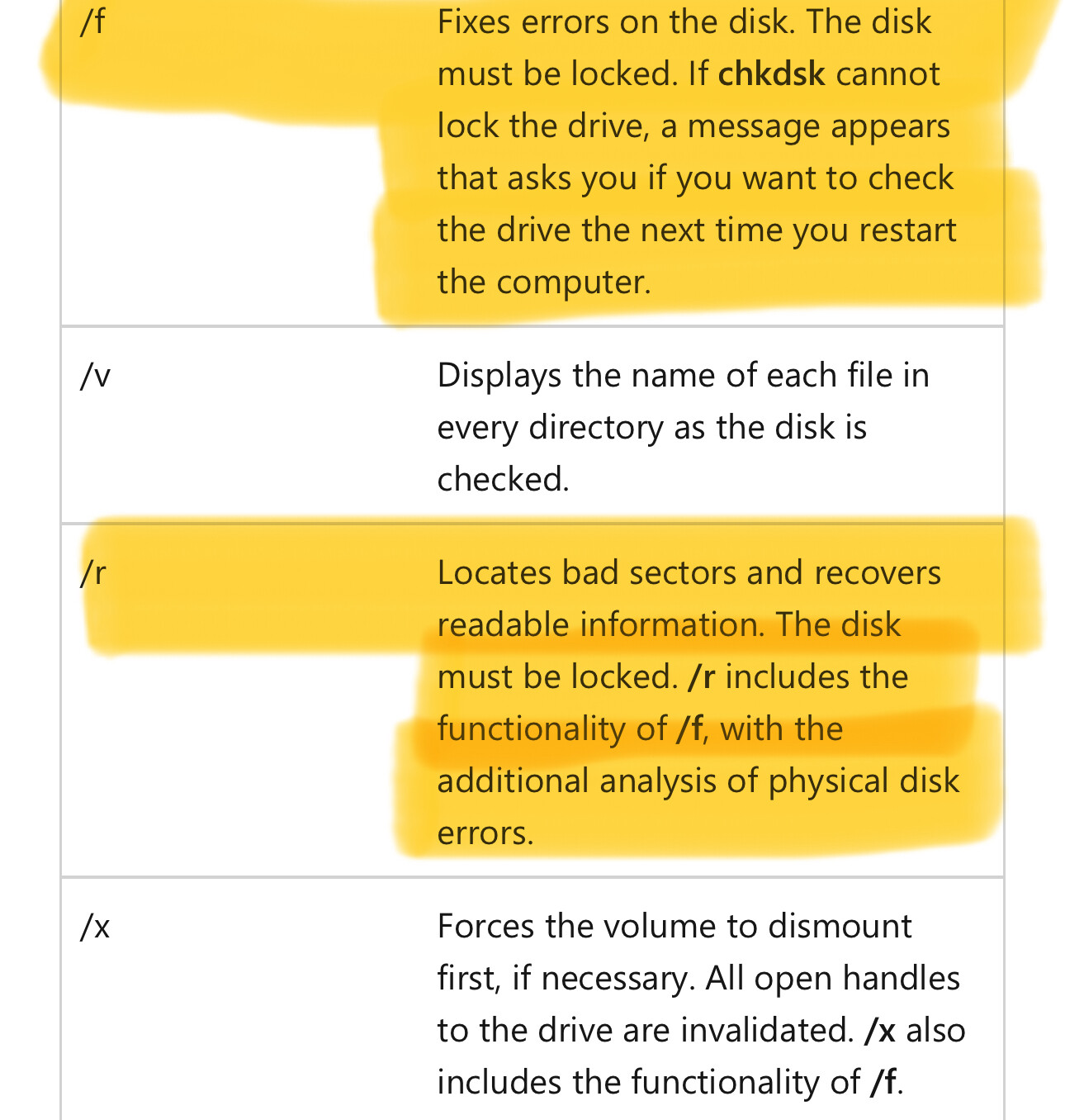
I would certainly try Chkdsk to look at the device, and possibly repair the file system using the /r option. Also give Winfr a try. Do that before paying any money for some other recovery software or service. Both will certainly have a decent try at fixing a broken file system.
Both are Microsoft and either builtin or free.
What can be done to check a device on a Mac system that is builtin or free, I wouldn’t know.
2 Likes
If plugged into a PC as distinct from a iMac then chkdsk /scan should be available as an option as well. Typically using /r checks for bad sectors, while a USB stick has cells (a memory location) using /r will add extra writes to each cell affected and used for the repair, if repairs are required. This extra work is why /r is not recommended for those devices and not recommended for SSD drives as it creates more reads and writes to each cell. Controllers on sticks and SSD drives are supposed to manage bad cells without the need for a systems allocation list to be updated by the /r switch. Mind you USB sticks are hit and miss depending on the manufacturer and quality of the sticks.
On a iMac there should be a couple of ways of checking and attempting recovery. The following link has some suggestions that may help. Note that some ways are destructive to the data already on the drive, these should be avoided as you are trying to recover the lost data, and are not trying to make a new file system.
3 Likes
I wouldn’t worry at all about a few extra writes to blocks of cells in the devices using the memory technology behind SSDs, USB sticks, or SD cards.
Should get thousands of writes out of blocks of cells before any degradation. And reads don’t count as writes, and that is what a disk scan and analyse mainly does.
If it is a broken file system, then only a few sectors may need to be written, and those could be well be relocated onto fresh areas of cells previously unused.
That is a level of device management even lower than OS device drivers that operate below the level of applications.
The /r option on chkdsk is about repairing a file system. Not about the hardware sector allocation table. Or cell group table.
The /f selection is also about file system repair but does not carry out surface integrity checks. Chkdsk /r option implies /f as well as conducting the extra surface integrity checks and if needed marks bad sectors and attempts recovery of the data in the bad sectors. /f has 4 steps (includes checking the USN journal), /r has all the steps of /f plus checks space used by files and checks free space, for any bad sectors in both those areas.
3 Likes
- Thanks for the article, I’ll read it over;
- I agree that paying in the hope of a recovery may not be money well spent; and
- I recall months ago I tried a free (windows) data recovery program available on a library computer, but that didn’t recover anything.
Any serious administrator tool will require administrator level access. I wouldn’t be looking for that in a public library computer. They should be well locked down.
I would be looking to see what you can do on computers you do have admin access to.
1 Like
Noted, thanks.
